Your sound.
In the right place.
Meet SoundCue. Your microphones, headphones, and speakers,
beautifully in sync. Right from your menu bar.
Free, now and always.·macOS 14+·Apple silicon & Intel
Less fiddling.
More listening.
The right device, the right volume, the right moment.
All the little things, quietly taken care of.
Your favorites.
First in line.
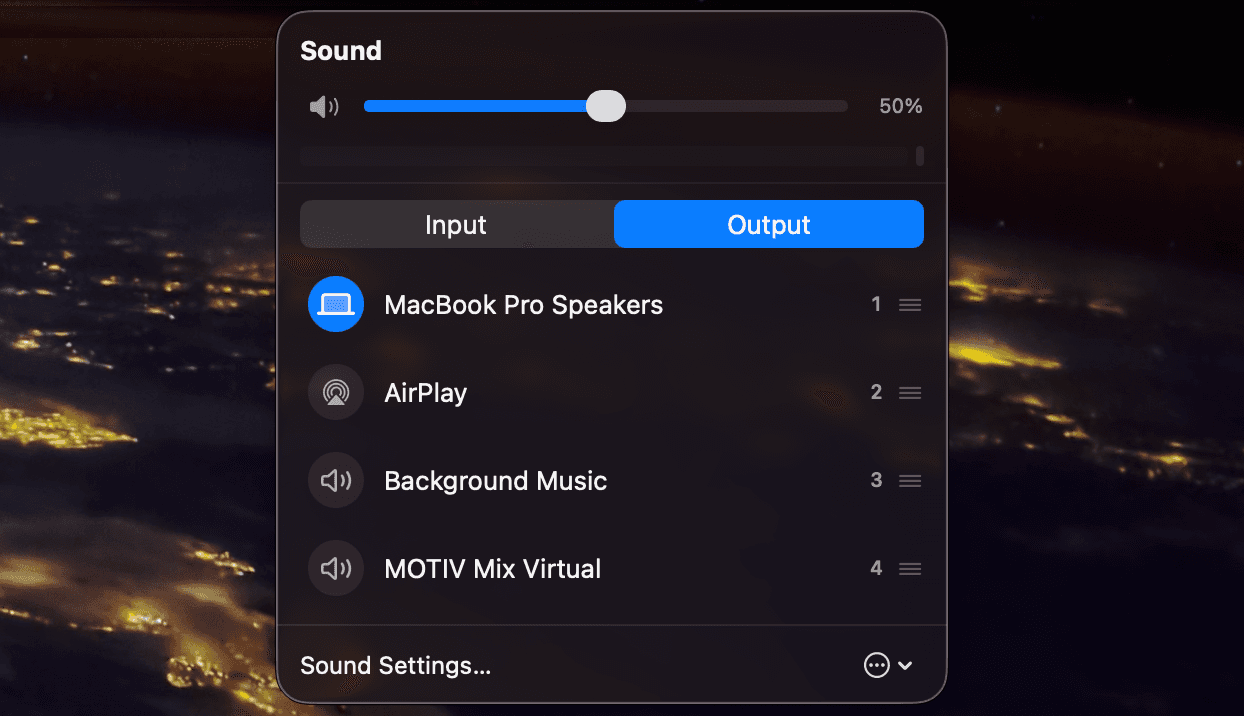
Drag to set your priorities. Connect your headphones, and SoundCue knows what to do.
See your sound.
At a glance.
Live audio levels, precise volume, and a quick mute. A little peace of mind before “you’re on.”
One less
surprise.
Keep an eye on Bluetooth battery levels. So your next great idea doesn’t end with a low-battery tone.
Volume controls and battery readings depend on your hardware and what macOS reports.
A Mac app.
Through and through.
Built natively with SwiftUI. Tucked into your menu bar. SoundCue feels like it’s always belonged on your Mac.
- No Dock clutter. No extra windows.
- Separate priorities for input and output.
- Your settings stay on your Mac.
Free. Now and always.
No subscription. No ads. No “pro” version waiting around the corner.
Just a thoughtful little utility that makes your Mac a little more yours.
Is SoundCue really free?
Yes. SoundCue is free and will stay free. No subscriptions, paid tiers, ads, or account to create. Just a useful little app for your Mac.
Will it work on my Mac?
SoundCue requires macOS 14 Sonoma or later and supports Apple silicon and Intel Macs. Live output metering requires macOS 14.2 or later. Downloads are signed with Developer ID and notarized by Apple.
How does automatic switching work?
Drag your devices into your preferred order inside SoundCue. While the app is running, it uses the highest-priority connected device, falls back when it disconnects, and switches back when it returns. Input and output have their own independent lists. Apps with their own audio device selection may keep using their chosen device.
Does SoundCue record my audio?
No. With your permission, SoundCue analyzes audio locally to display live levels. It never saves recordings or sends audio to a server. You can skip audio permissions and still switch devices. Metering stops when its controls are no longer visible.
How do I install it?
Download the DMG from GitHub Releases, open it, and drag SoundCue onto the Applications folder shown next to it. Open SoundCue and look for the microphone icon in your menu bar. To launch it at login, add SoundCue in System Settings → General → Login Items.